


Most people think of APIs as something reserved for developers sitting behind screens filled with code. But what if your iPhone could quietly run API calls in the background while you go about your day?
That is exactly what HTTPBot does. If you have HTTPBot installed on your iPhone, you can trigger an API call from a single tap on your home screen, a Siri phrase, or an automation that fires on its own when a condition is met. No laptop or no context-switching.
HTTPBot and iOS Shortcuts together turn your phone into a powerful automation engine without writing a single line of code.
In this guide, you will learn how HTTPBot iOS Shortcuts work, how to run API calls from iOS Shortcuts in 5 steps, and how to build practical iPhone workflow automation setups that save time every day.
What the HTTPBot and iOS Shortcuts integration actually does
The iOS Shortcuts app lets you chain together actions from apps installed on your device. HTTPBot exposes its request functionality as a Shortcuts action, which means you can use a saved HTTPBot request as a step inside any shortcut you build.
Concretely, this means:
- You can trigger a GET or POST request from your iPhone home screen with one tap
- You can capture the API response and pass it into the next action in your shortcut (send a notification, write to a file, display the result)
- You can set up automations that fire a request when something happens, like when you arrive somewhere, at a set time, or when your iPhone connects to a specific network
This is no-code API automation on iOS in the most literal sense. You are not writing Swift. You are not opening a terminal. You are building a workflow in a drag-and-drop interface that calls real API endpoints through HTTPBot.
It is also worth noting that iOS 26 has expanded the Shortcuts app considerably, adding new intelligent actions and personal automations that can be triggered by time, location, or file events. The HTTPBot integration slots naturally into this expanded capability, making your saved requests part of a much broader automation landscape.
How to run API calls from iOS Shortcuts in 5 steps
If you have HTTPBot installed and a request already saved, this takes about two minutes to set up.
Step 1: Save your request in HTTPBot
Before anything else, create and save the request you want to automate inside HTTPBot. Give it a clear name because this is how you will identify it inside the Shortcuts app. If you need a GET request, a POST with a JSON body, or anything with custom headers and auth, configure it fully in HTTPBot first.
If you are new to organizing requests, the HTTPBot guide on managing REST API collections covers the best approach for keeping things tidy as your saved requests grow.
Step 2: Open the Shortcuts app and create a new shortcut
Tap the + button in the top right of the Shortcuts app to start a new shortcut. Give it a name that reflects what it does — something like “Check API status” or “Submit daily log”.
Step 3: Add the HTTPBot action
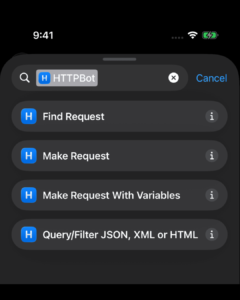
Tap “Add Action”, then search for HTTPBot. You will see the available action for running a saved request. Select it. You will then be prompted to choose which saved request to run — this is where the clear naming from Step 1 pays off.
Step 4: Use the response
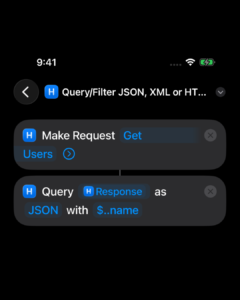
Once the HTTPBot action runs, the response is available as an output you can pass into subsequent steps. Add a “Show Result” action to display the response in a notification, or pipe the output into a text action, a file write, or whatever your workflow needs. This is where the Shortcuts GET POST request pattern becomes genuinely powerful: the response does not disappear after the call, it becomes data you can act on.
Step 5: Add the shortcut to your home screen or set an automation trigger
Tap the shortcut name at the top to edit it, then tap the share icon and choose “Add to Home Screen”. This gives you a one-tap button that fires your API call directly from the iPhone home screen.
Alternatively, go to the Automation tab in Shortcuts and set a trigger: a time of day, a location, an NFC tag, a connection to a Wi-Fi network. Any of these can fire your HTTPBot request automatically, with no tap required.
Practical use cases for HTTPBot automation via Shortcuts
The five-step walkthrough above is the mechanics. Here is where it becomes genuinely useful in a developer or power-user context.
Health check monitoring without opening an app
Build a shortcut that sends a GET request to your server’s health endpoint and shows a notification with the status code. Add it to your home screen or schedule it to run every morning. You get a passive server status check without ever opening a browser or launching an API client.
Triggering webhooks from a single tap
Many development workflows — deployments, Slack notifications, CI triggers — are just POST requests to a webhook URL. Save those as requests in HTTPBot, add them to your home screen via Shortcuts, and you have a mobile control panel for your own infrastructure.
Automating API iOS workflows for QA
If you regularly test the same set of endpoints during QA, a shortcut can walk through them in sequence. Each HTTPBot action fires in order, and you can chain Show Result steps to review each response without switching between saved requests manually.
Logging or submitting data on a schedule
Combine HTTPBot’s Shortcuts automation with a time-based trigger to send a scheduled POST to a logging endpoint, a data collection API, or a webhook that kicks off a background job. Your iPhone becomes a lightweight scheduler that works even when you are not looking at it.
Why this matters for developers who live in the Apple ecosystem
There is a broader shift happening in how developers use their devices. The expectation that serious API work only happens at a desk, on a desktop client, is becoming outdated. A 2024 report found that the mobile app development industry generated approximately $935 billion in revenue, reflecting how central mobile workflows have become to the entire software development lifecycle.
The developers who benefit most from the HTTPBot iOS Shortcuts integration are those who already have saved requests built up from their regular testing workflow. If you have been using HTTPBot to test and debug APIs on your iPhone and iPad, the Shortcuts integration is a natural extension of that. It takes the requests you already made and gives them a second life as automation triggers.
It is also one of the clearest differentiators between a native Apple API client and a cross-platform tool. As noted in the comparison of HTTPBot with other macOS API clients, Apple Shortcuts integration is a feature that no Electron-based tool in the category can match. It requires being built into the Apple ecosystem at the OS level, which is exactly where HTTPBot sits.
What you can and cannot do with this integration
Being clear about the current scope helps set expectations.
What works well:
- Running any saved HTTPBot request (GET, POST, PUT, DELETE, PATCH) as a Shortcuts action
- Using the response as output that feeds into subsequent Shortcuts actions
- Triggering requests from home screen buttons, Siri, automations, and widgets
- Passing variables from Shortcuts into your requests via environment support
Worth knowing:
- The request needs to be fully configured in HTTPBot before you reference it in a Shortcut. You cannot build the request inside the Shortcut itself.
- Complex conditional logic based on response content is better handled inside a fuller Shortcuts workflow using the output from HTTPBot rather than inside HTTPBot itself.
For anything beyond basic automation like multi-step request chains, response parsing, or dynamic headers, the combination of HTTPBot’s native request builder and Shortcuts’ visual workflow editor gives you more flexibility than either tool alone.
Getting started today
The fastest path to your first automated API call on iPhone is:
- Download HTTPBot from the App Store
- Build and save one request. Even something simple like a GET to a public API
- Open Shortcuts, add the HTTPBot action, and add it to your home screen
That is it. You will have a working Shortcuts GET POST request running from your iPhone in under five minutes, with no code written and no laptop opened.
If you are already building more complex API workflows, the HTTPBot guide on REST API editors and what to look for covers the full picture of how to structure your requests for reuse, which makes your Shortcuts automations more robust too.